·FolderSync Team
Automate Your Photo Backups with FolderSync
Never Lose a Photo Again: How to Automate Your Android Photo Backups with FolderSync
Our smartphones are our modern-day photo albums, capturing everything from milestone moments to everyday memories. But what happens if you lose your phone? Without a solid backup plan, those precious photos could be gone forever.
Manually transferring photos is a chore nobody enjoys. Thankfully, there's a better way. With FolderSync, you can create a powerful, automated "set it and forget it" system to back up every photo you take directly to your cloud storage.
This guide will walk you through setting up your first photo backup sync in just a few minutes.
What You'll Need
- The FolderSync app installed on your Android device (or the Desktop version on your Windows, Linux or Mac computer if you have images on there you want to backup).
- An account with a cloud storage provider (e.g., Google Drive, Dropbox, OneDrive, MEGA, etc.) or a self-hosted storage solution like NextCloud, NAS or similar.
Step 1: Add Your Cloud Account to FolderSync
First, we need to give FolderSync access to your cloud storage.
- Open FolderSync and tap the ACCOUNTS menu at the bottom.
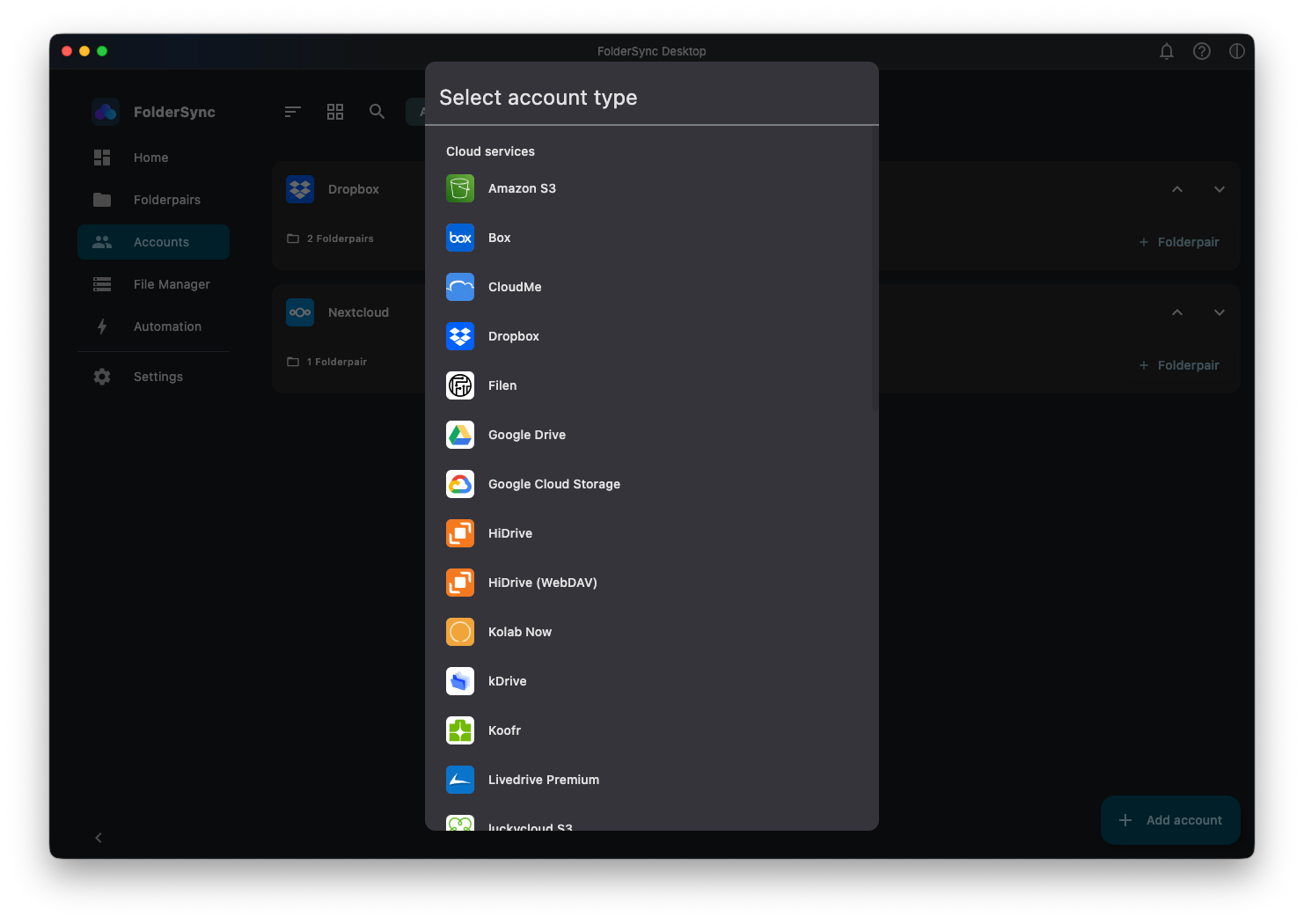
- Tap the floating '+ Add account' button to add a new account.
- Choose your cloud storage provider from the list. FolderSync supports dozens of options!
- Give the account a unique name (e.g., "My Google Drive") and follow the on-screen instructions to authenticate and grant access.
Step 2: Create a "FolderPair"
The magic of FolderSync happens through FolderPairs. A FolderPair is simply a rule that links a folder on your device (the source) with a folder in your cloud storage (the destination). It can also link to cloud storage folders, using your device as the intermediary, but that is another topic.
- Navigate to the FOLDERPAIRS tab.
- Tap the '+ Create folderPair' button to create a new FolderPair.
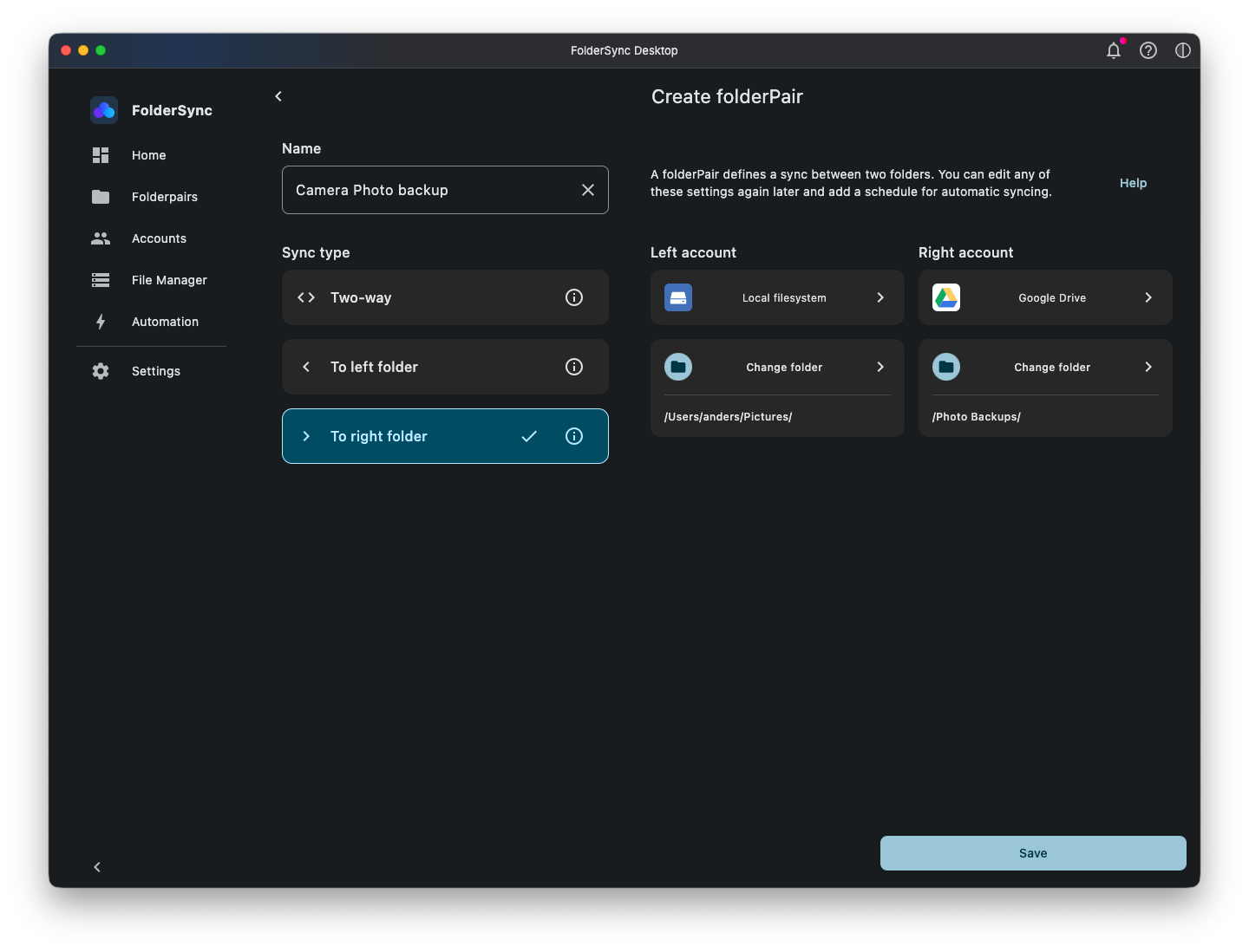
- Give it a descriptive name, like "Camera Photo Backup".
Step 3: Configure the Source and Destination
Now we tell FolderSync what to back up, and where.
- Account: Select the cloud account you just added on the right.
- Sync type: For a simple backup, choose "To right folder". This is a one-way sync that only uploads new files from your phone to the cloud, ensuring nothing on your phone gets accidentally deleted if you clean up your cloud folder.
- Left folder: Tap to select the source folder on your device. Your photos are typically stored in the
DCIM/Camerafolder or a Pictures folder on your PC under your home directory. - Right folder: Tap to select the destination folder in your cloud storage. We recommend creating a new folder called "Android Photo Backups" to keep things organized, but it can be whatever you like. You can create a new folder within the folder select dialog.
- Press 'Save' button to create the folderPair.
Step 4: Schedule Your Sync
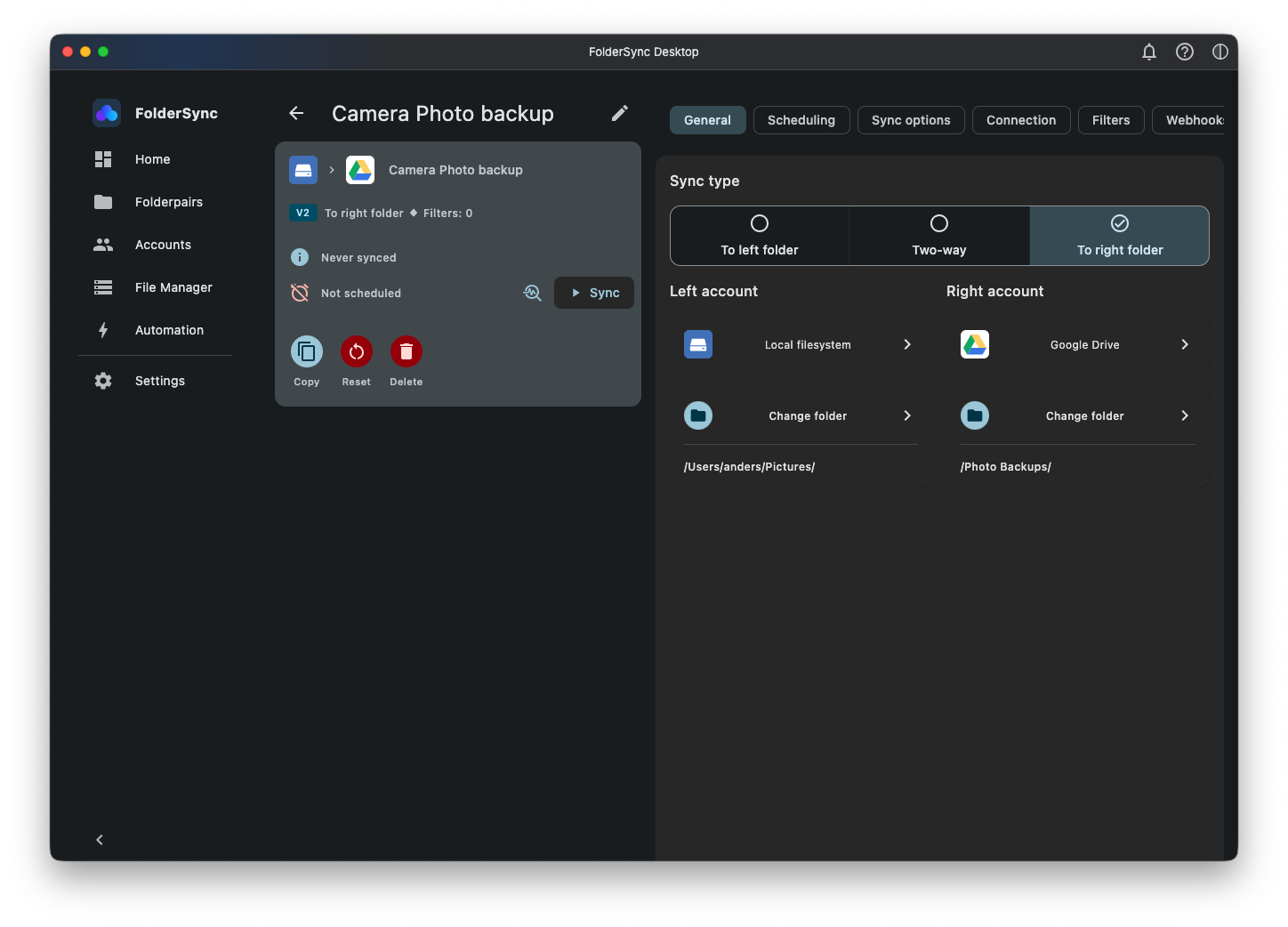
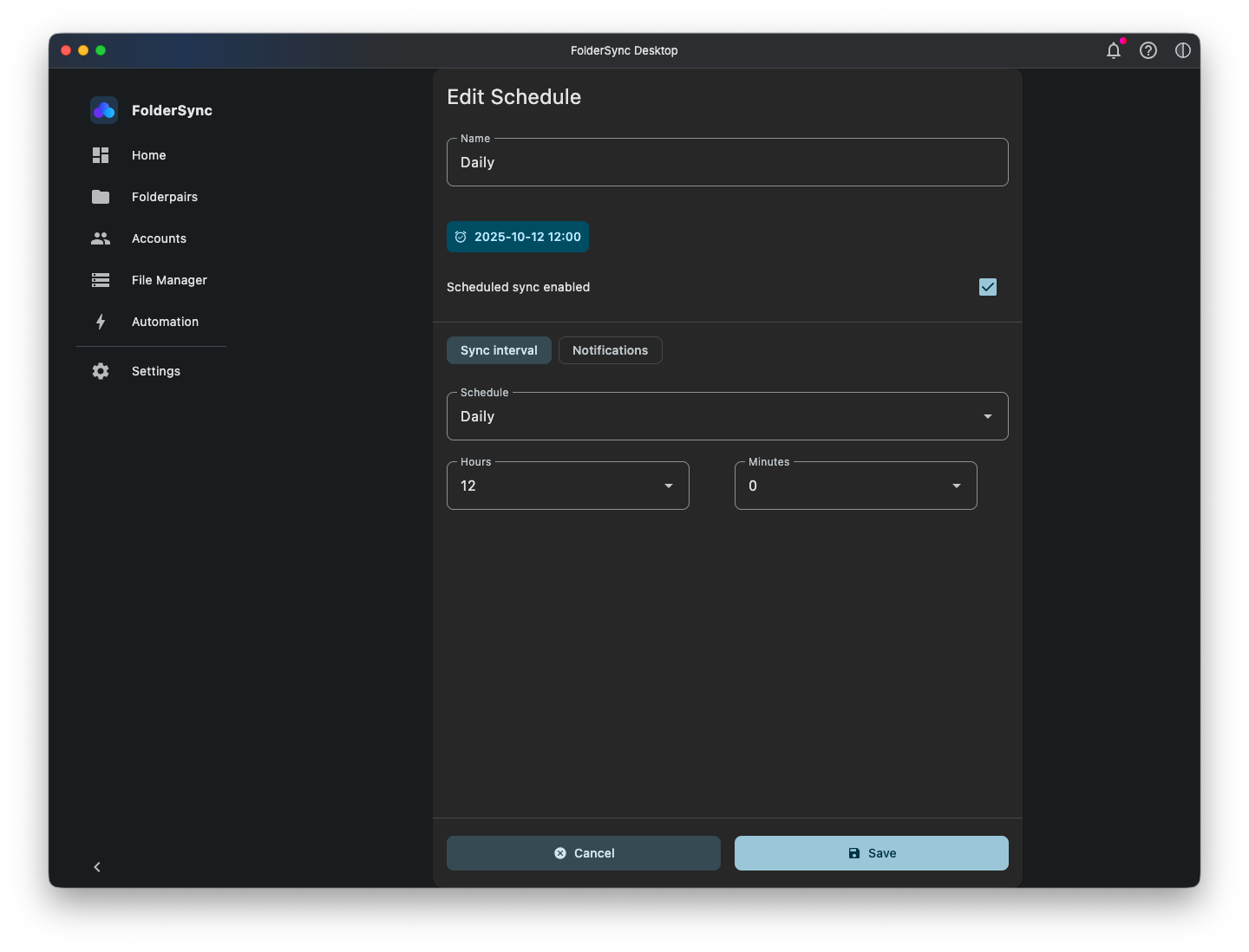
Now your folderPair has been created, but at the moment it will only sync if you manually initiate it by pressing 'Sync' button. This is where the automation comes in. Let's make this happen automatically in the background.
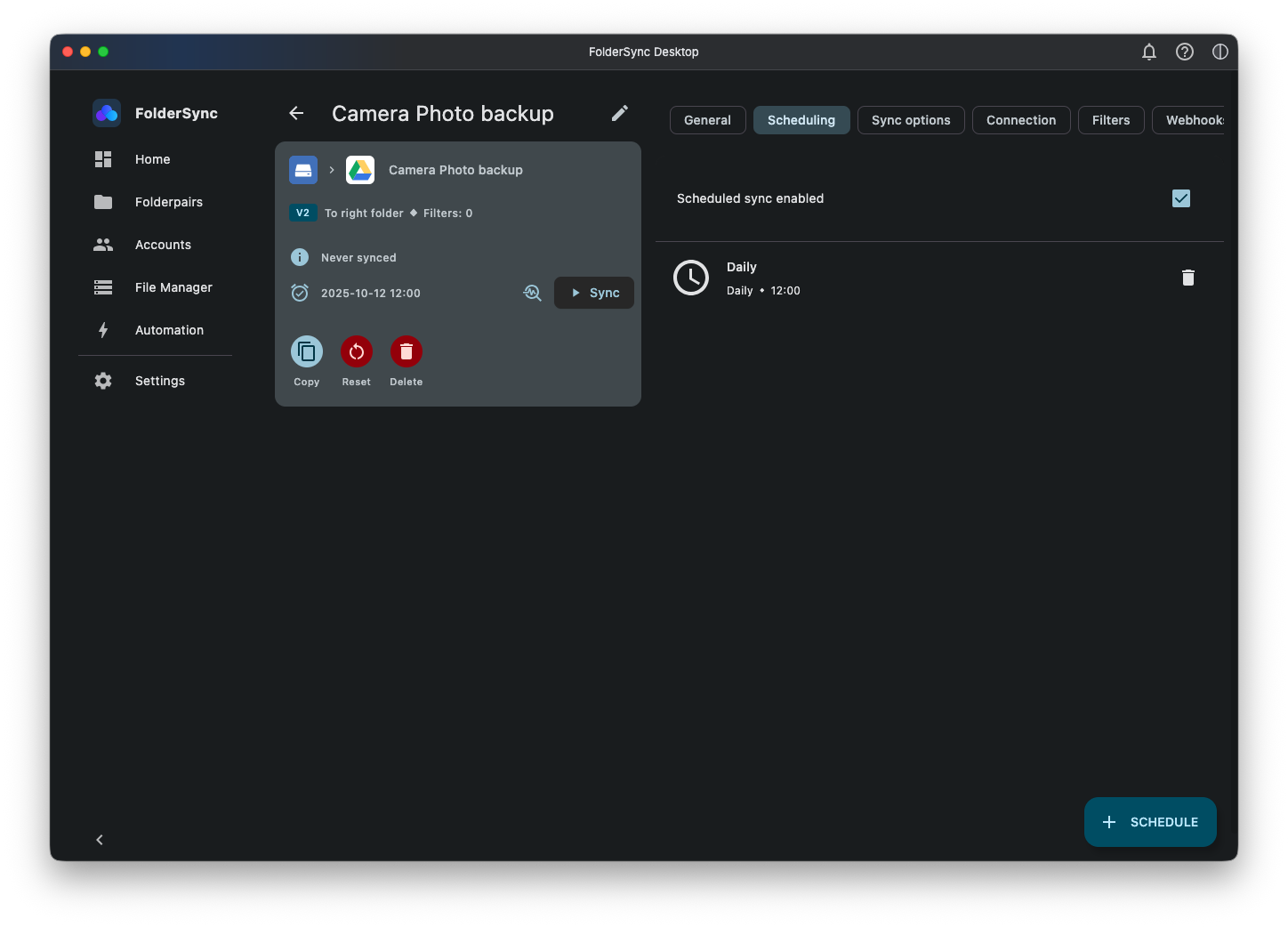
- Tap the Scheduling tab
- Add a new schedule item by clicking '+ Schedule' button.
- Give your schedule a descriptive name, here lets choose "Daily".
- Set your desired sync interval. Choosing Daily and 12.00 hours to sync every day at noon.
- On Android for optimal battery life you can enable "Only sync if charging" if you prefer on the Connection tab.
Step 5: Save and Sync!
That's it! Tap the Save icon at the top. Your FolderPair is now active. You can perform the first sync manually by tapping the Sync button, or simply wait for the next scheduled sync time. FolderSync also offers instant sync to upload photos as soon as you take them, this can be enabled on Sync options tab.
You now have peace of mind knowing your memories are being safely and automatically backed up. Explore FolderSync's advanced options to customize your syncs even further!
Check out our documentation to explore all the options.
Try FolderSync for free
Automatic file sync and backup for Android, Windows, macOS and Linux.